• Skip to main content
  • Skip to footer

Christian Cameron

Official website of author Christian Cameron

  • About
  • My Books
    • Historical Fiction
    • Fantasy
    • Thriller
    • Science Fiction
    • Under 5
  • Series
    • Masters & Mages
      • Cold Iron (Master & Mages 1)
      • Dark Forge (Master & Mages 2)
      • Bright Steel
    • Chivalry Series
      • The Ill-Made Knight
      • The Long Sword
      • The Green Count
      • Sword of Justice
      • Hawkwood’s Sword
      • The Emperor’s Sword
    • Traitor Son Cycle
      • The Red Knight
      • The Fell Sword
      • The Dread Wyrm
      • The Plague of Swords
      • The Fall of Dragons
    • The Adventures Of Tom Swan
      • Tom Swan And The Head of St George
        • Castillon
        • Venice
        • Constantinople
        • Rome
        • Rhodes
        • Chios
      • Tom Swan and the Siege of Belgrade
        • Tom Swan and the Siege of Belgrade: Part One
        • Tom Swan and the Siege of Belgrade: Part Two
        • Tom Swan and the Siege of Belgrade: Part Three
        • Tom Swan and the Siege of Belgrade: Part Four
        • Tom Swan and the Siege of Belgrade: Part Five
        • Tom Swan and the Siege of Belgrade: Part Six
      • Tom Swan and the Last Spartans
      • Tom Swan and the Keys of Saint Peter
    • Arcana Imperii
      • Artifact Space
      • Beyond the Fringe
      • Deep Black
    • Age of Bronze
      • Against All Gods
      • Storming Heaven
      • Breaking Hel
      • Age of Bronze: Rule Set
    • Tyrant
      • Tyrant
      • Tyrant: Storm Of Arrows
      • Tyrant: Funeral Games
      • Tyrant: King of the Bosporus
      • Tyrant: Destroyer of Cities
      • Tyrant: Force of Kings
    • The Long War
      • Killer Of Men
      • Marathon
      • Poseidon’s Spear (Long War 3)
      • The Great King
      • Salamis
      • Rage of Ares
      • Treason of Sparta
    • Commanders
      • The New Achilles
      • The Last Greek
    • Alan Craik
      • Night Trap
      • Peacemaker
      • Top Hook
      • Hostile Contact
      • Force Protection
      • Damage Control
      • The Spoils of War
      • The Falconer’s Tale
  • Blog
  • #WritingFighting
  • Free Book!
  • Maps & Gaming
    • Fan Art
  • Contact

Test Page

  • This field is for validation purposes and should be left unchanged.
  • To download your copy of
    Mysterious Ways
    please start by selecting your preferred device from the drop down below.
  • The Kindle Expediter Process will add this book to all of your Amazon Kindle devices and Apps.

  • Click Here To Download

  • Click Here To Download

  • Click Here To Download
  • Side-loading files can be a little tricky the first time, so we have a set of directions available if you need them.
  • Email the Book to Yourself

    Use your Computer (not a mobile device) to download the ebook file by clicking above.

    1. Navigate to Amazon and log in
    2. In your account settings -> manage your devices -> manage your kindle, and find the “Approved Document Email List”. Add your personal email address to this list of approved contacts (so you can send emails to yourself via Kindle).
    3. Next, in account settings -> manage your devices -> manage your kindle, find your “Kindle Email Address”. It will usually be something like: yourname@kindle.com
    4. Open your preferred email client or app
    5. Create a new email addressed to yourname@kindle.com (substitute for your actual Kindle email address).
    6. Attach the ebook file to your email and click “send”. Don’t write anything in the subject line or email body.
    7. After 5 minutes, turn on your Kindle device and click “sync”. The emailed ebook file should now show up in your book library or documents library (Kindle Fire). If it doesn’t, try waiting a few more minutes or use one of the other methods listed above.

    Use Your Device’s Built-In Browser

    1. On your Kindle eReader Device, open the Experimental Browser (or Silk Browser for Kindle Fire Tablets) and make sure you are connected to Wi-Fi or mobile internet.
    2. Click the button above to download the ebook file to your device, if you have not already done so.
    3. The ebook will now appear in your library (for most Kindle devices) or in your “Documents” folder (for Kindle Fire tablets).

    Use a Computer and USB Cable

    Use your Computer (not a mobile device) to download the ebook file by clicking the button above.

    1. Turn on your Kindle Device and connect to your computer using the supplied USB cable. If prompted by a pop-up on your screen for connection options, choose the option that reads “Connect to View Files” or similar.
    2. Navigate to the connected Kindle Device in your Windows Explorer or Mac Finder and double click to find the folder marked “Books” (for Kindle e-readers) or “Documents” (for Kindle Fire).
    3. Locate your downloaded ebook file on your computer (usually in the “Downloads” folder) and drag the file from your computer into the “Books” or “Documents” folder on your Kindle.
    4. Safely eject your Kindle Device and remove the USB Cable. The book should now be available in your book library or in your documents library (Kindle Fire).
  • How To Add To Your Nook eReader (black and white display)

    1. Download this file to a computer (not a mobile device).
    2. Connect your Nook device to your computer using the supplied USB cable and locate the device in Windows Explorer or Mac Finder (usually in “My Computer” or “Devices” on Mac).
    3. On your computer, locate the ebook file you just downloaded.
    4. Drag the ebook file from your computer onto your Nook device -> Files -> My Books folder
    5. The book will now appear in your library.

    How To Add To Your Nook Tablet (color touchscreen)

    1. Open your Nook Tablet and make sure it’s connected to wi-fi or mobile internet
    2. On your Nook tablet, navigate to this page (if you’re not already on your mobile phone or tablet right now).
    3. If you’re using your Nook tablet right now, click the button above to download the ebook,
    4. If asked “Are you sure you would like to download this file?” tap “Yes”.
    5. The file will download to your device and will be available inside your Nook App in your books library.
  • How To Add To iBooks On iPad or iPhone

    1. Make sure your device is turned on and connected to wi-fi or mobile internet
    2. On your mobile phone or tablet, navigate to this page (if you’re not already on your mobile phone or tablet right now)
    3. Click the “Download Now” button above.
    4. If asked “Are you sure you would like to download this file?” select “Yes”.
    5. The file will download to your device and will be available inside your iBooks App in your books library.

    How To Add To iBooks on Mac

    1. Make sure your device is turned on and connected to wi-fi or mobile internet.
    2. On your computer or laptop, navigate to this page (if you’re not already using your Mac).
    3. Click the “Download Now” button above.
    4. If asked “Are you sure you would like to download this file?” select “Yes”.
    5. The file will download to your computer or laptop.
    6. Locate the ebook file you just downloaded (usually in your “Downloads” folder) and two-finger-click (for MacBooks) on the file.
    7. Then select “open with” and then select the iBooks App to open your book.
  • Download To Kobo Tablet

    1. Open your Kobo Tablet and make sure it’s connected to wi-fi or mobile internet
    2. On your Kobo tablet, navigate to this page (if you’re not already doing so).
    3. Click the download button above.
    4. If asked “Are you sure you would like to download this file?” select “Yes”.
    5. The file will download to your device and will be available inside your Kobo App in your books library.

    Transfer to Kobo Device via Computer

    1. Use a computer (not a mobile device) to download this file by clicking the “Download” button above.
    2. Connect your Kobo device to your computer using the supplied USB cable and locate the device in Windows Explorer or Mac Finder (usually in “My Computer” or “Devices” on Mac).
    3. On your computer, locate the ebook file you just downloaded.
    4. Drag the ebook file from your computer onto your Kobo device.
    5. The book will appear in your library.
  • How To Load To The Google Play Books App

    Books files are best updated to the Google Play Books app via the file directory of your device. To do this you download to your device, then upload to your Google Play Books digital library.

    Once in your digital library, the book can be read from any of your devices.

    1. Using a device with Google Play Books (an android device, chromebook, or other), click on the “Download” button above.
    2. Go to your device’s Files app and either two finger click or use the three dot menu to the right of the file name to open the options menu.
    3. Select “Open With… ->Upload to Play Books”.
    4. The selected book file will now upload to your Google Play Books digital library.
    5. To read on any device with Google Play Books, open the Google Play Books app and select the book. If it is not already on your device, it will quickly download and you can begin reading.
  • PDF documents can be read on any device with no additional apps needed.

    However, PDF documents are static and will not resize based on screen size. They are usually comfortably visible on laptops or large tablets, but can be hard to read on smaller devices.

Footer

Follow Me

  • Share on Facebook
  • Share on Twitter
  • Share on Instagram

Represented By

Mastodon

Follow on Instagram

Copyright © 2025 · Powered by ModFarm Design · Log in

Subscriber Exclusive

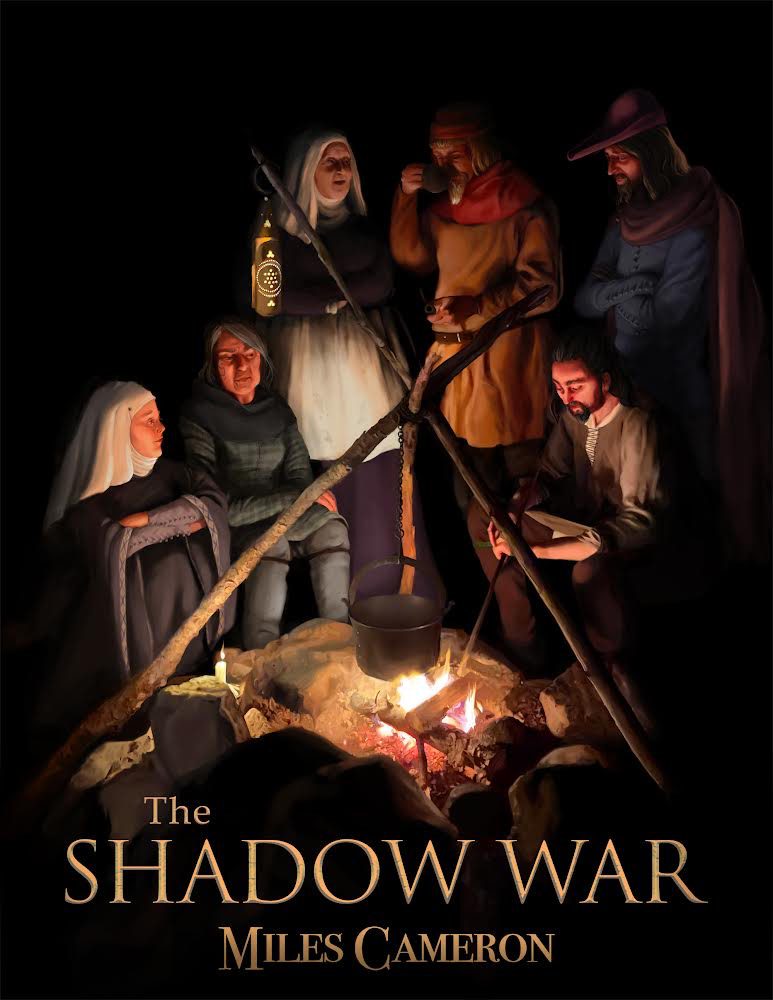
Shadow War

Shadow War is a serialized novel only available to my subscribers.

Subscribers get free, exclusive stories and advanced word on new releases, sales, special editions, appearances, and more.
Sign Up Now
We use cookies to ensure that we give you the best experience on our website. If you continue to use this site we will assume that you are happy with it.Accept